
Threshold and Availability Profiles for a WLC device
Add a wireless LAN controller (WLC) monitor and keep track of all the performance metrics to help network teams manage devices, access points, and SSIDs.
Plus, add a Threshold and Availability Profile to enable the Alarms Engine to send notifications when a resource is critical, down, or in trouble. The profile will trigger an alert upon any breach of predefined conditions set by the user.
Setting thresholds
-
Log in to your Site24x7 account.
-
Navigate to Network > WLC.
-
Select the required wireless device and navigate to the Inventory tab. Alternatively, you can navigate to Admin > Configuration Profiles > Threshold and Availability > Add Threshold Profile. In the Add Threshold Profile pop-up window, select Wireless LAN Controller in the Monitor Type field.
The WLC being monitored should support SNMP.
- Provide a unique display name to identify the Threshold and Availability Profile.
-
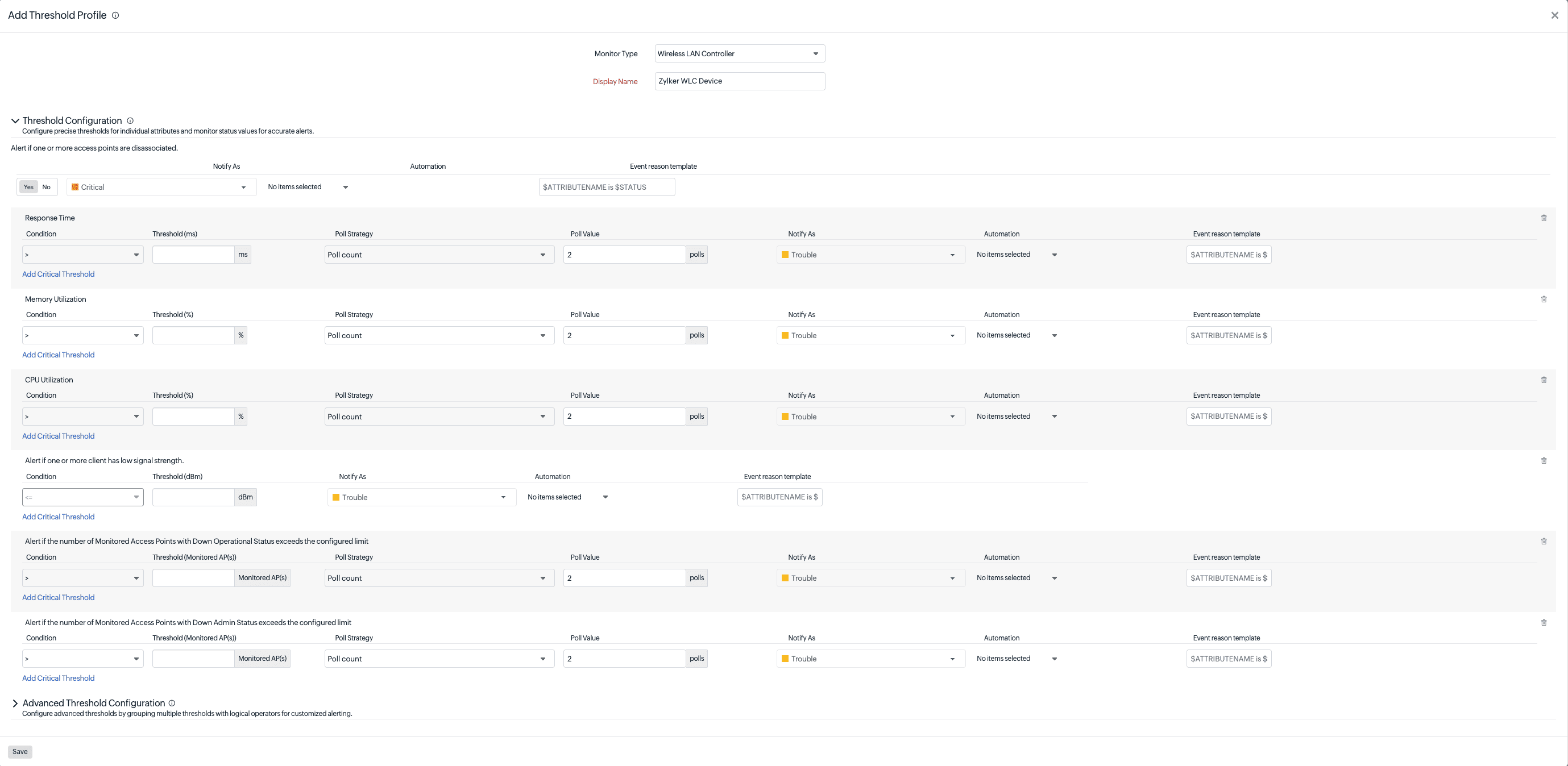
Toggle Yes next to Alert if one or more access points are disassociated to trigger an alert when one or more access points lose their association with the WLC.
- Toggle Yes next to Alert if the number of Monitored Access Points with Down Operational Status exceeds the configured limit to trigger an alert when the number of access points with down operational status exceeds the configured limit.
- Toggle Yes next to Alert if the number of Monitored Access Points with Down Admin Status exceeds the configured limit to trigger an alert when the number of access points with down admin status exceeds the configured limit.
-
You can set thresholds for Response Time, CPU Utilization, Memory Utilization, and the client Signal Strength (in dBm) under Alert if one or more client has low signal strength. Enter a value specific to the unit, and set the threshold condition(s) (>, <,=,>=, <=) and the monitor state (Trouble or Critical). Any breach in these threshold conditions will trigger alerts. You may also add additional conditions by clicking Add Critical Threshold.
-
For each threshold, choose an Automation to run when the alert triggers, and customize the Event reason template to control how the alert reason appears in notifications.
-
Advanced Threshold configuration: Set complex alert conditions using logical operators across multiple attributes to accurately detect anomalies.
-
Click Save. The Threshold and Availability Profile created for the WLC monitor will automatically display on the Admin > Configuration Profiles > Threshold and Availability page, along with the other profiles you've created.
Access Points
-
Navigate to Network > WLC > Access Points.
-
Select the required wireless device and navigate to the Inventory tab. Alternatively, you can also navigate to Admin > Configuration Profiles > Threshold and Availability > Add Threshold Profile. In the Add Threshold Profile pop-up, select Access Point in the Monitor Type field.
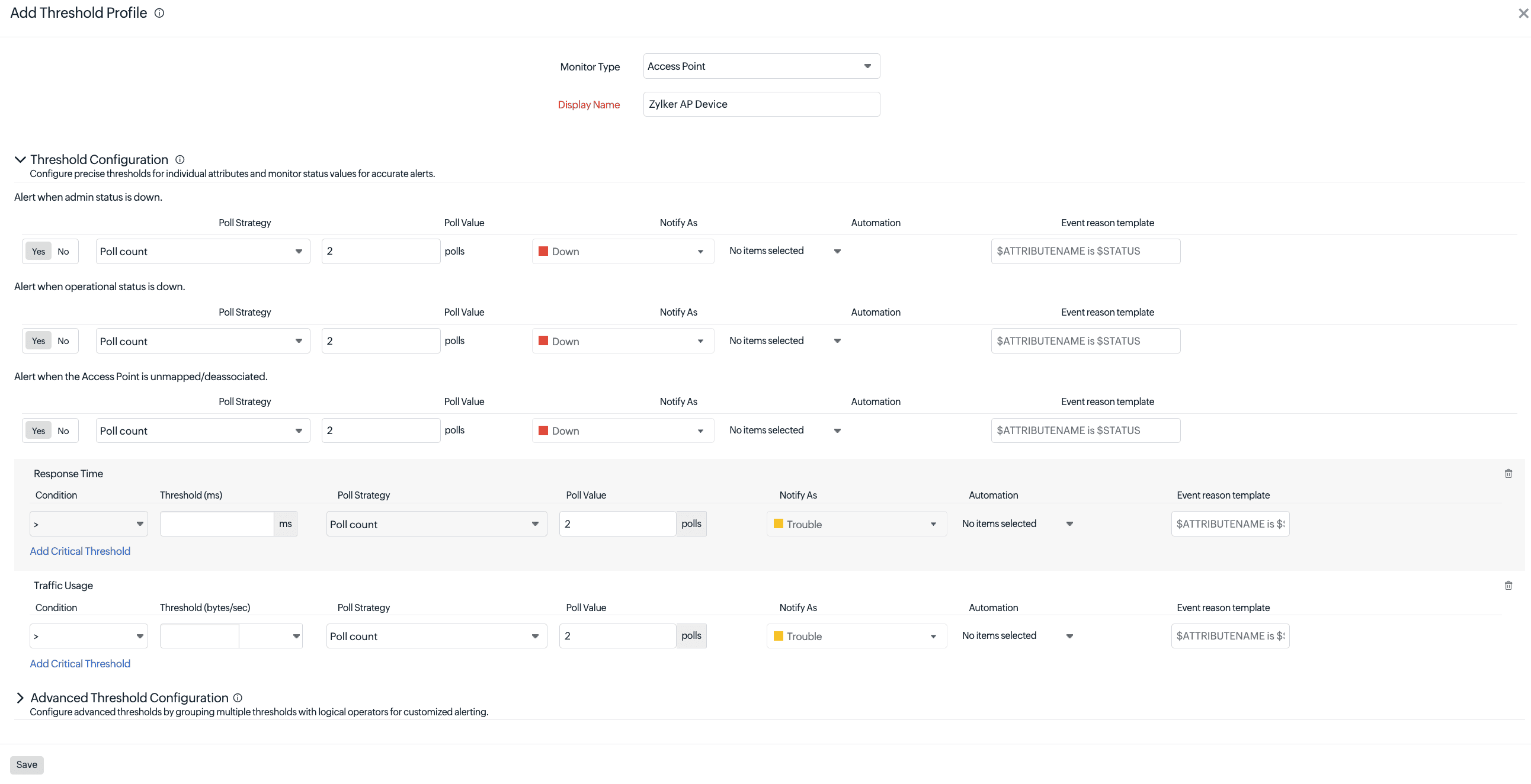
- Toggle Yes next to Alert when admin status is down to trigger an alert when the access point's admin status is down.
- Toggle Yes next to Alert when operational status is down to trigger an alert when the access point's operational status is down.
- Toggle Yes next to Alert when the Access Point is unmapped/deassociated to trigger an alert when the access point is unmapped or deassociated from a Wireless LAN controller.
-
You can set thresholds for Response Time or Traffic Usage. Enter a value specific to the unit, and set the threshold condition(s) (>, <,=,>=, <=) and the monitor state (Trouble or Critical). Any breach in these threshold conditions will trigger alerts. You may also add additional conditions by clicking Add Critical Threshold.
-
Advanced Threshold configuration: Set complex alert conditions using logical operators across multiple attributes to accurately detect anomalies.
-
Click Save. The Threshold and Availability Profile created for the Access Point monitor will automatically display on the Admin > Configuration Profiles > Threshold and Availability page along with the other profiles you've created.
 Note
NoteFor Cisco access points, you can configure thresholds for both Admin Status and Operational Status. For other vendors, threshold configuration is available only for Operational Status.
Related articles
-
On this page
- Setting thresholds
- Access points